
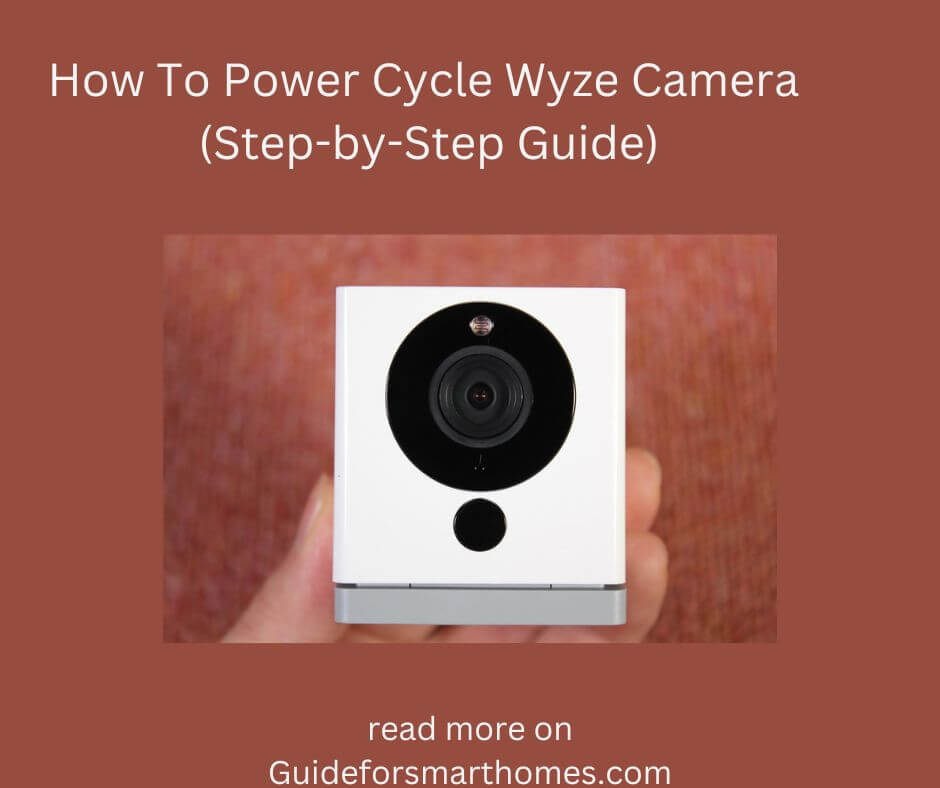
Power cycling is one method you can use to fix any problem you might have with your electronics or appliances. Many people use this method whenever they notice that their device isn’t working as well as it should.
If you notice that your Wyze camera isn’t working well, you can always power cycle the camera to fix the problem. We are going to guide you on how you can go about power cycling your Wyze camera.
Step-by-Step Guide on How To Power Cycle Wyze Camera

There are different methods you can always use to power cycle your Wyze camera. It all depends on the type of Wyze camera you use. Right below are methods to power cycle the Wyze camera.
To power cycle, your camera is pretty straightforward.
- Unplug your Wyze camera from its power source. You can do this by unplugging it from the switchboard or camera itself.
- Once you have unplugged the camera, you will have to wait a couple of seconds for the poser in the camera to be completely discharged (you should wait for at least 30 seconds).
- Go ahead and plug the camera back into its power source once, allowing it to load up.
- Your camera should begin to work perfectly the moment you do this.
How Do You Power Cycle a Wyze Outdoor Camera

Power cycling your Wyze outdoor camera is no complicated task. It is just as easy as power cycling your indoor camera. All you need to do if you want to power cycle your outdoor camera is to unplug your Wyze outdoor camera from the hook or location it was set up.
- Once you have unplugged it, you can remove the batteries from the camera. Allow the power or energy to discharge as you want the camera to shut down completely. Ideally, it should take around 2 minutes for the power to drain.
- Once you have done this, you can now go ahead and insert the batteries back into the camera. Wait for several seconds and turn on your device. The power cycle should be complete, and your outdoor camera should begin to work smoothly.
How to Power Cycle Wyze Camera Remotely?

Power cycling your Wyze camera remotely is no big deal. That is, as long as the camera is enabled for remote functions. All you need to do is open the app and click on the camera you want to turn off or power cycle.
Once you have clicked on the app, you can power it off. If you have a switch or adapter you can control with your phone, ensure your Wyze camera is connected to it and power off the adapter. You should wait for at least 20 minutes once you have done this.
After 20 minutes, you can go ahead and turn on your device. You will have to do a reset when you turn it on.
How to Power Cycle your Wyze Base Station

Power cycling your Wyze base station is like power cycling your Wyze camera. The first thing you must do if you want to power cycle the base station is to disconnect the cameras from the base station.
Once you have disconnected the cameras from the base station, you next must disconnect the cables from the station. This includes the ethernet cable and the power cable. When you do this, the base station should discharge after a couple of seconds.
Wait for at least 20 seconds before reconnecting all the necessary cables back to your base station. The moment you do, your base station should come back on, and every minor issue it had should be gone.
What Are the Possible Wyze Camera Problems and their Solution?

There are common problems you might encounter when using the Wyze camera. Here are the issues and their possible solutions.
1. The Camera Keeps Disconnecting
This is one of the most common problems faced by many people who use this device. Most often than not, the device or camera keeps disconnecting randomly. This is because of a host of reasons ranging from a glitch in setup, software, or settings to a bad router, internet connection, or a flat battery.
Solution
However, fixing the problem is pretty simple. The first thing you should do is power cycle the camera and the base. Once you are done with that, and the problems persist, check your router to know if it is working well. Also, charge or change your battery and update the software. The issue of your camera randomly disconnecting when you do this should cease.
2. The Camera is not Connecting to Network
The camera not connecting to the network is another common problem you might likely encounter when using the Wyze camera. A few things can cause this, from the type of network settings on your phone to the bandwidth of the network you use. A software glitch can also cause this problem.
Solution
The solution to this problem is simple. First, power cycle the base and camera. Then check the network settings on your phone and ensure you are on a 2.4GHz network. Anything other than this will make your camera inoperable.
3. Camera not Turning On
There are a few things that can make your camera not turn on. These things, which range from a bad battery to a bad power source and adapter, affect many Wyze cameras. Although this is not a common scenario, your camera will not come on if there is any hardware or short circuit problem.
Solution
Check the power source and the adapter to know if everything is working perfectly. If it isn’t from the power source or the adapter, you can go ahead and check if hardware to know if there are any signs of a faulty component internally. If you are not sure, you can call an expert.
How Do I Reset my Wyze Camera?

Resetting your Wyze camera should be the last thing on your list. It would be best if you consider this option when other options or troubleshooting guides don’t work. Resetting your Wyze camera means deleting all the settings or configurations you add to the device. Your camera will go back to factory settings.
However, resetting your camera doesn’t mean losing all the software updates installed on it; it will also lose the configurations and settings. Resetting the camera is a pretty easy thing to do. Remove your SD card and press the set up button. Press the button for at least 20 seconds until you see a yellow light blicking from the camera.
Once you see a yellow light blinking, your reset is in progress. You will meet the setup page once the reset is complete.
Video Section
https://youtube.com/watch?v=PLNFuGOwNyo%3Ffeature%3Doembed
https://youtube.com/watch?v=oyvjRO2Tlmg%3Ffeature%3Doembed
Conclusion
It is pretty easy to power cycle your Wyze camera, although there are different methods to go about it. All the methods you need have already been discussed above.
Also, if the power cycle doesn’t work, there might be other problems with your camera. All the problems and solutions are right above.










Leave a Reply